- You want a low-cost way to try a vertical mouse.
- You mainly use one Windows PC or another computer with USB-A.
- Your daily work is browsing, email, documents, and general office navigation.
- You do not need Bluetooth or multi-device switching.
- You are comfortable replacing AAA batteries.
- You value a large review history more than a long list of modern features.
Travel & Work / Product review
Anker Vertical Mouse Review: A Good Budget Ergonomic Mouse for Work?
A low-cost way to try a vertical mouse—best for users who want a simple 2.4GHz office setup and can accept a more basic feature set.
Jump to section
01 / Quick answer
Quick Answer
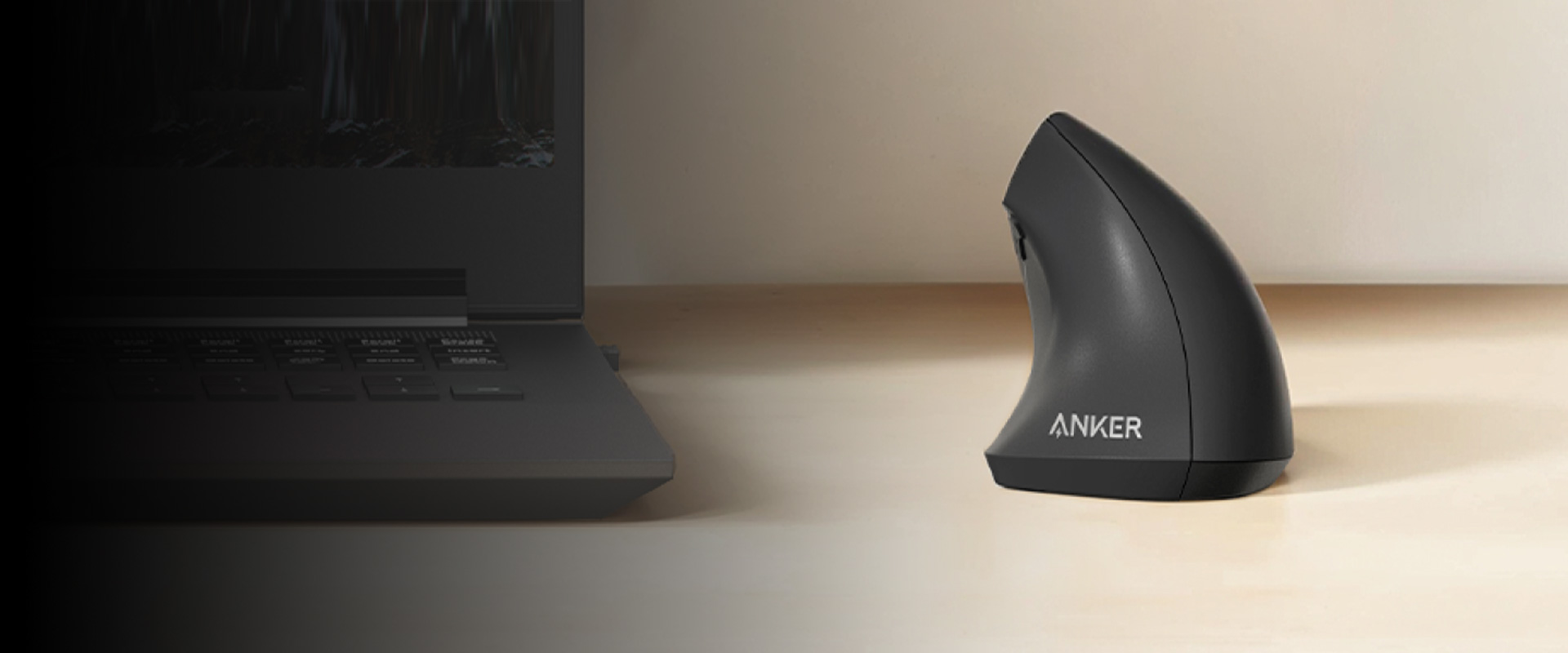
The Anker 2.4G Wireless Vertical Ergonomic Optical Mouse is one of the simplest ways to try a vertical mouse without paying premium productivity-mouse prices.
Its strengths are straightforward: a sculpted vertical shape, three DPI settings, dedicated back/forward buttons, a USB receiver, and an unusually large body of long-term customer feedback. For everyday browsing, documents, email, and general office work, it can be a practical upgrade for users who prefer a more upright hand position than a conventional mouse.
The trade-offs are equally clear. It does not support Bluetooth or multi-device switching, it runs on two AAA batteries rather than a rechargeable internal battery, and its side buttons are not recognized on macOS. Amazon feedback also shows recurring complaints around long-term reliability, button behavior, scrolling, and size fit.
02 / Fit
Who Is the Anker Vertical Mouse For?
The Anker makes the most sense for users who are curious about vertical mice but do not want to make a large first investment.
It is especially relevant if your workday is mostly made up of web browsing, spreadsheets, documents, email, and other standard desktop tasks. The mouse uses a 2.4GHz USB receiver rather than Bluetooth, so the setup is intentionally simple: plug in the receiver, turn on the mouse, and use it with one computer.
It is a weaker fit for people who constantly switch between a laptop, desktop, and tablet. It is also less attractive for modern USB-C-only laptops unless you already use a hub or adapter.
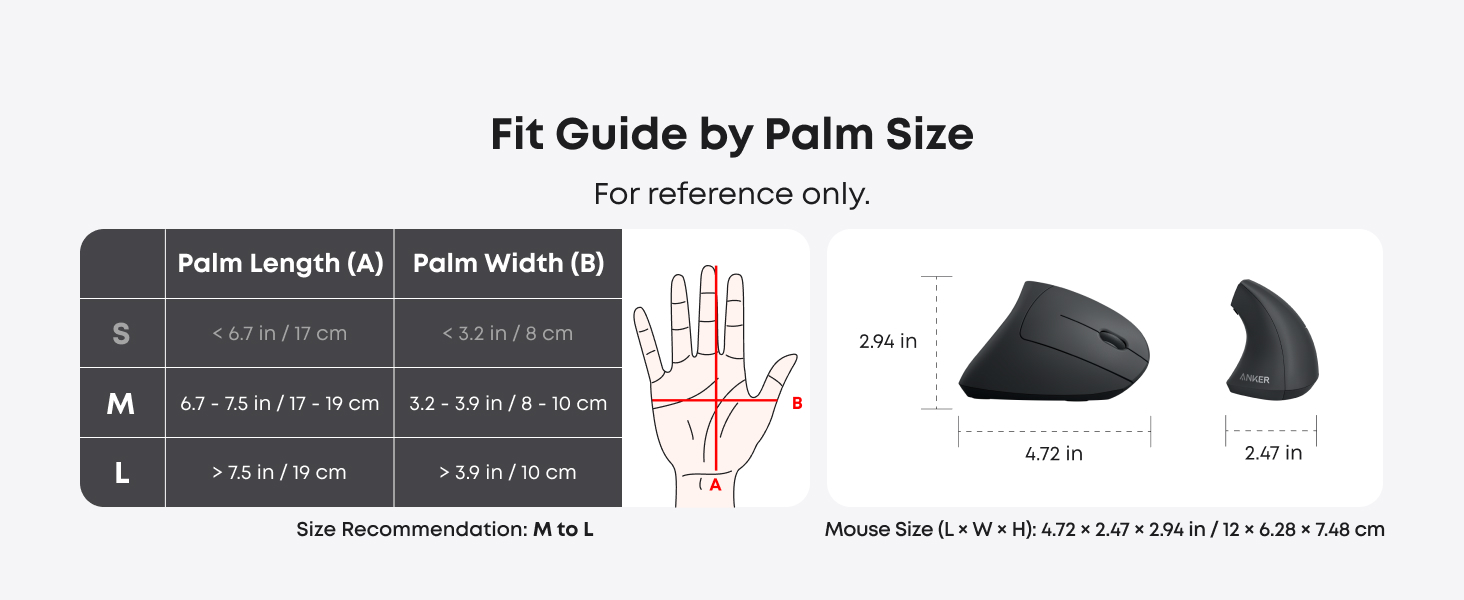
Hand size matters as well. Anker’s own dimensions put the body at roughly 120 × 62.8 × 74.8 mm, and the customer feedback we reviewed includes repeated comments that the mouse can feel too large or awkward for smaller hands. That does not make it a “large-hand mouse” for everyone, but it does mean small-hand buyers should be more cautious than the low price might suggest.
03 / Shape
What Makes It Different From a Regular Mouse?
The key difference is the vertical grip.
Instead of resting your palm flat over the mouse, the Anker rotates the hand into a more upright, handshake-like position. That changes how the hand and forearm sit while you move the pointer.
For some users, that posture feels more comfortable during long computer sessions. For others, the steeper angle simply replaces one unfamiliar feeling with another. A vertical mouse is not automatically more comfortable for every person, and it should not be treated as a medical treatment for wrist or hand problems.
The best way to think about the Anker is as an inexpensive way to test whether a vertical shape fits your own hand and work style.
04 / Comfort and fit
Comfort and Hand Fit
Comfort is the main reason to consider this mouse—and also the area where individual fit matters most.
Amazon’s large review base is broadly positive on ergonomics and comfort, but the same review pool contains a meaningful number of users who found the shape awkward. Some say the mouse works well for long office sessions; others report needing to grip it more firmly than expected, having difficulty reaching certain controls, or simply failing to adapt to the angle.
The most consistent fit warning is for smaller hands. Because the body is tall and fairly substantial, users with shorter fingers may have more trouble reaching the wheel or side buttons comfortably.
That means the Anker should not be purchased simply because it has “ergonomic” in the name. The more useful question is whether its size and vertical angle match your hand.
A note on health claims
Some customer reviews describe feeling more comfortable after moving away from a conventional mouse. That is useful user feedback, but it is not medical evidence. Nolmira does not recommend this mouse as a way to prevent or treat carpal tunnel syndrome, wrist pain, or other health conditions.
If discomfort is persistent, product choice is only one part of the setup; workstation height, keyboard position, breaks, and professional medical advice may also matter.
05 / Work use
Everyday Office Performance
For normal office work, the Anker covers the basics well enough.
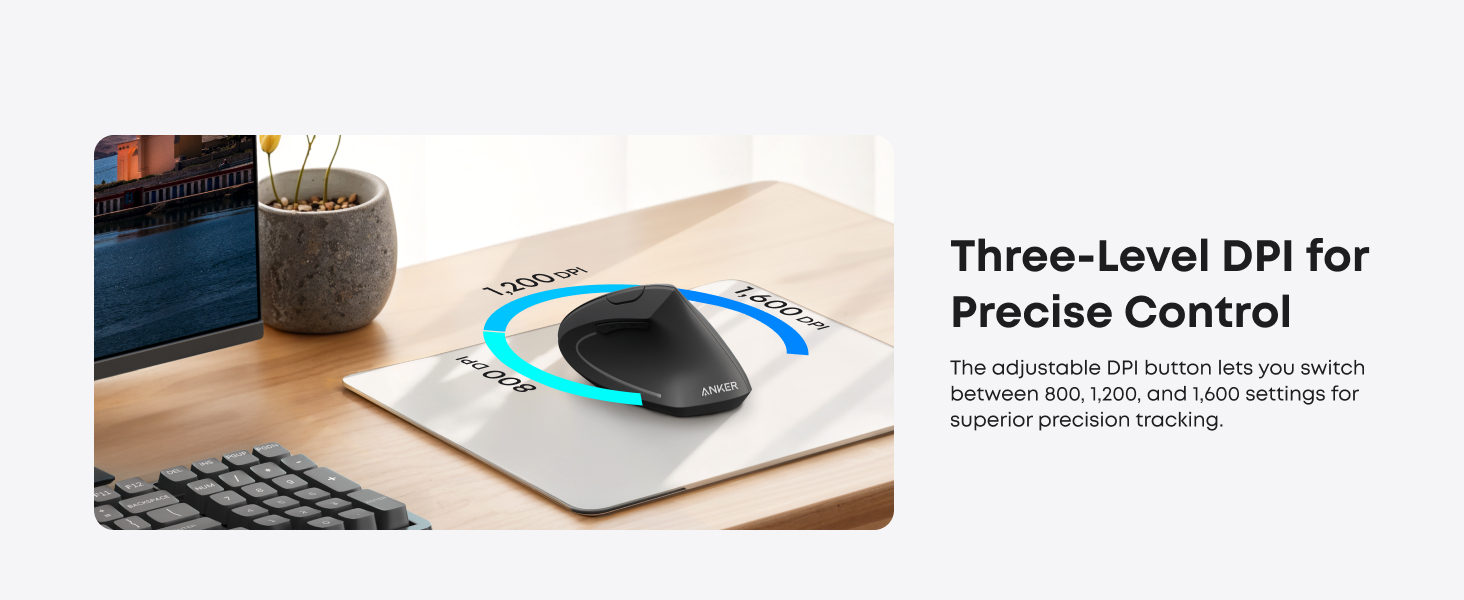
The mouse offers three sensitivity presets—800, 1200, and 1600 DPI—so you can choose a slower or faster pointer speed without installing software. Anker also includes dedicated next/previous buttons for web browsing.
That is enough for:
- email and web browsing
- documents and presentations
- basic spreadsheet work
- general desktop navigation
- casual home-office use
Where the limitations become more noticeable is in precision-heavy work.
Independent testing from RTINGS describes the sensor performance as inconsistent and the click latency as relatively high. Those weaknesses matter much less when you are opening tabs or editing a document than when you are doing detailed creative work, fast gaming, or any task where fine cursor control is important.
So while the Anker is an office mouse, it is not a high-performance productivity tool in the same sense as more expensive Logitech or modern multi-device ergonomic mice.
06 / Connection
Connectivity: Simple, but Dated
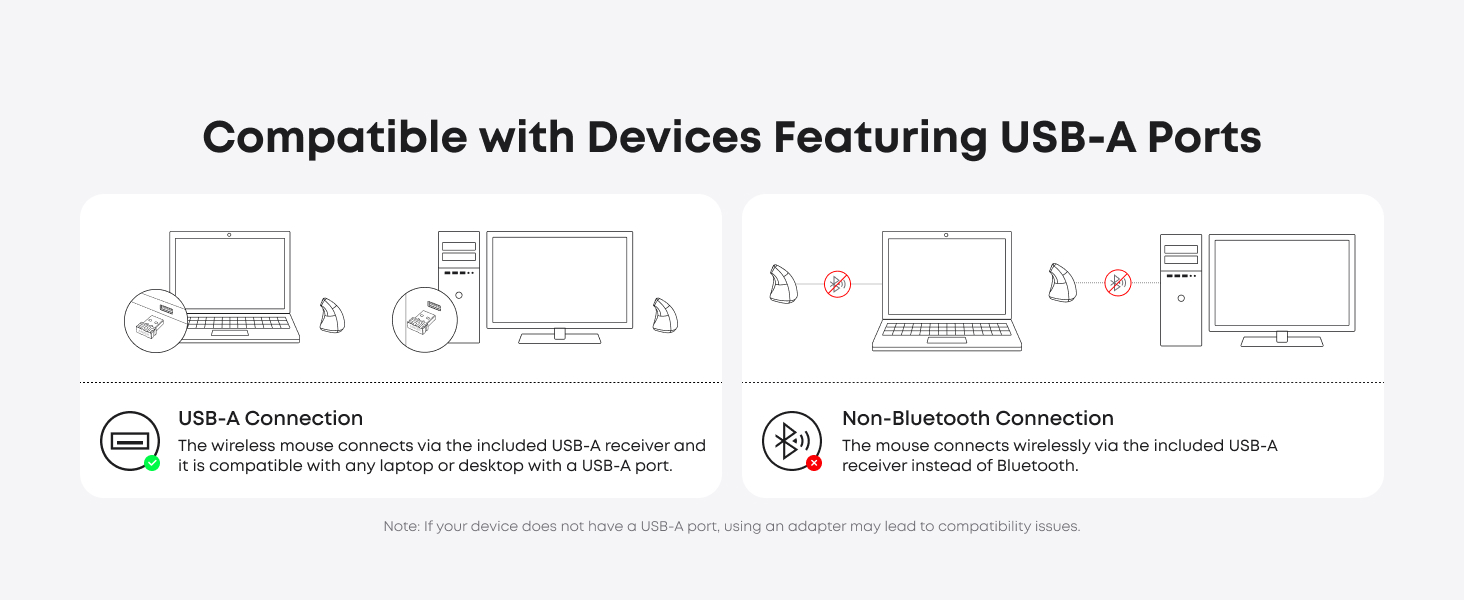
The Anker uses a 2.4GHz USB-A receiver stored in the bottom of the mouse.
That setup has one major advantage: simplicity. There is no Bluetooth pairing process and no companion software required for basic use.
But in 2026, it also feels limited.
- no Bluetooth
- no multi-device switching
- no USB-C receiver
- no wired mode
- no software-based button customization
If you work from one Windows desktop or a laptop with USB-A, none of that may matter. If your desk includes a MacBook, tablet, work laptop, and personal computer, the limitations become much more obvious.
Anker lists compatibility with Windows, Linux, and macOS, but notes that the previous/next thumb buttons are not recognized on macOS. Mac users can still use the basic mouse functions, but should not expect feature parity with Windows.
07 / Power
Battery and Power-Saving Behavior
The mouse uses two AAA batteries, which are not included.
That is either a benefit or a drawback depending on how you prefer to manage your desk gear.
On the positive side, replacing batteries takes seconds and there is no internal battery to recharge. On the negative side, you need spare AAA batteries, and the mouse does not offer the USB-C charging convenience found on newer ergonomic models.
Anker says the mouse enters a power-saving state after about eight minutes of inactivity and wakes when you press a mouse button.
Some customer reviews like the battery efficiency. Others report shorter-than-expected battery life or find the sleep/wake behavior less convenient than a mouse that wakes from movement.
For buyers comparing it with the rechargeable ProtoArc EM11 NL or premium Logitech options, this is one of the clearest generational differences.
08 / Controls
Buttons, Scrolling, and Customization
The Anker keeps controls basic.
You get the standard left/right buttons, scroll wheel, DPI control, and browser navigation buttons. There is no advanced companion software for remapping controls, creating profiles, or building workflow-specific shortcuts.
That simplicity can be appealing if you just want the mouse to work without configuring anything.
However, the review evidence shows a recurring set of complaints around button and scroll-wheel behavior. Some owners report stiff clicks, sticky buttons, double-click issues, or inconsistent scrolling after extended use. These complaints do not represent every unit, but they appear often enough in the large review pool to be treated as a real trade-off rather than an isolated anecdote.
If programmable controls or a premium scroll wheel are important to your work, this is not the strongest option.
09 / Trade-off
Reliability: The Main Reason to Be Cautious
Price is the Anker’s biggest advantage. Reliability is the biggest reason not to choose it automatically.
The overall Amazon rating remains positive at 4.2 out of 5 from more than 53,000 global ratings, which is a substantial amount of real-world feedback. At the same time, Amazon’s review summary flags reliability as a recurring negative theme.
Lower-rated reviews repeatedly mention issues such as:
- buttons becoming unresponsive or double-clicking
- scroll-wheel problems
- receiver or connection interruptions
- units failing after months of use
That does not mean every Anker mouse will fail. The large majority of buyers still rate the product positively. But compared with a product whose complaints are mainly about personal fit, the Anker has a clearer long-term hardware-risk signal.
For a roughly $30 mouse, some buyers may accept that trade-off. Others may prefer to spend more for a more polished design and stronger feature set.
10 / Alternatives
Anker vs. More Modern Ergonomic Mice
The Anker is easiest to understand when placed beside the other products in our ergonomic-mouse comparison.
Anker vs. ProtoArc EM11 NL
Choose the Anker if you want the lower-cost, simpler option for one computer.
Choose the ProtoArc EM11 NL if you want Bluetooth, multi-device switching, rechargeable power, and a more modern office workflow.
The ProtoArc also has its own fit and control trade-offs, so the extra features do not automatically make it more comfortable for every hand.
Anker vs. Logitech Lift
The Logitech Lift is the more polished option for small-to-medium hands and users who value Bluetooth and multi-device productivity.
The Anker is much cheaper, but its USB-only connectivity and larger fit make it less versatile.
Anker vs. Logitech MX Vertical
The MX Vertical is aimed more toward medium-to-large hands and premium productivity use. It adds Bluetooth, rechargeable power, software customization, and a more complete multi-device workflow.
The Anker’s advantage is price—not feature parity.
11 / Decision support
Who Should Buy the Anker Vertical Mouse?
- You have small hands and are sensitive to mouse size.
- You use a USB-C-only laptop without a hub.
- You regularly switch among multiple computers.
- You want rechargeable power.
- You need programmable buttons or advanced workflow shortcuts.
- Precise cursor performance matters for creative or technical work.
- Recurring reliability complaints are a deal-breaker for you.
12 / Final decision
Final Decision
The Anker 2.4G Wireless Vertical Ergonomic Optical Mouse remains relevant because it solves one problem very clearly: it makes the vertical-mouse category inexpensive to try.
You get the vertical shape, basic DPI adjustment, browser buttons, and wireless desktop use without paying Logitech-level prices. Its huge customer-review history also gives buyers more real-world evidence than many newer budget ergonomic mice.
But the low price comes with a simpler and older feature set. There is no Bluetooth, multi-device support, rechargeable battery, USB-C receiver, or meaningful customization. More importantly, reliability complaints around buttons, scrolling, and long-term operation appear often enough to deserve attention.
For a single-PC home office and a buyer who wants to experiment with a vertical shape, the Anker can still make sense.
For a daily work mouse you expect to move between devices for years, it is easier to justify spending more.
Check current price →
Affiliate link · Disclosure
13 / Evidence transparency
How We Reviewed the Anker Vertical Mouse
Nolmira did not personally hands-on test this mouse.
This review synthesizes:
- Anker’s official specifications and compatibility information
- Amazon customer-review patterns from a very large rating base
- representative lower-rated feedback to identify recurring trade-offs
- independent testing from RTINGS
- comparison with the ergonomic mice in our broader office-mouse guide
We separate manufacturer claims, independent testing, and customer feedback rather than treating any single source as definitive.
14 / FAQ
FAQ
Is the Anker vertical mouse good for office work?
Yes, for basic office tasks. It is well suited to browsing, documents, email, presentations, and everyday desktop navigation. Users who need advanced customization, very precise cursor performance, or multi-device switching should consider more capable alternatives.
Is the Anker vertical mouse good for small hands?
It may not be the safest choice for small hands. The body is relatively tall and substantial, and both Amazon feedback and independent comparisons suggest fit can be less comfortable for smaller users. Logitech Lift is a more obvious small-to-medium-hand alternative.
Does the Anker vertical mouse have Bluetooth?
No. It connects through a 2.4GHz USB receiver.
Is the Anker vertical mouse rechargeable?
No. The standard model covered in this review uses two AAA batteries.
Does it work with Mac?
Basic mouse functions are compatible with macOS, but Anker states that the previous/next thumb buttons are not recognized on Mac OS X.
Is a vertical mouse better for wrist pain?
A vertical mouse changes the hand and forearm position, and some users find that position more comfortable. However, comfort varies by individual, and a mouse should not be treated as a medical treatment or a guarantee against pain or injury.
Is the Anker better than Logitech Lift?
They target different budgets. The Anker is cheaper and simpler. Logitech Lift adds Bluetooth, multi-device support, a more polished office workflow, and is specifically designed around small-to-medium hands. If price is the priority, Anker has the advantage; if workflow and fit matter more, Lift is the stronger option.
Comparing the Anker with Lift? Read our Anker Vertical Mouse vs Logitech Lift comparison for the hand-fit and office-workflow trade-offs.